HOWTO: How to create an outline font material
In this tutorial, you will learn how to create a font material that can be used to draw MSDF fonts with an outline effect. A similar approach can be used to implement shadow, glow, or procedural texturing using Sign Distant Field data stored for font character glyphs.
1. Create a new material asset
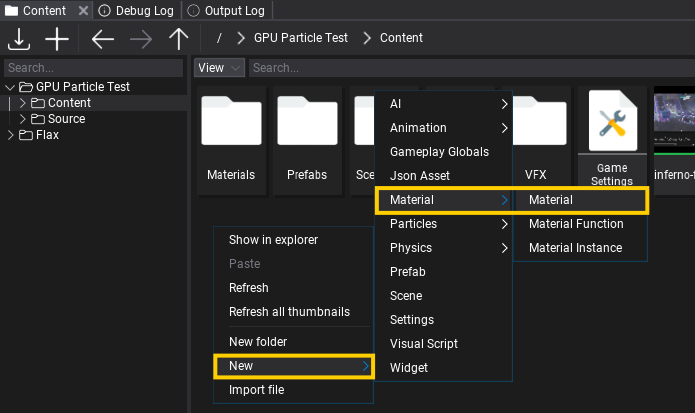
Right click in the Content Window and select option New -> Material -> Material. Type a name and confirm with Enter. Double-click on created asset and start editing material.
2. Create a texture parameter named Font
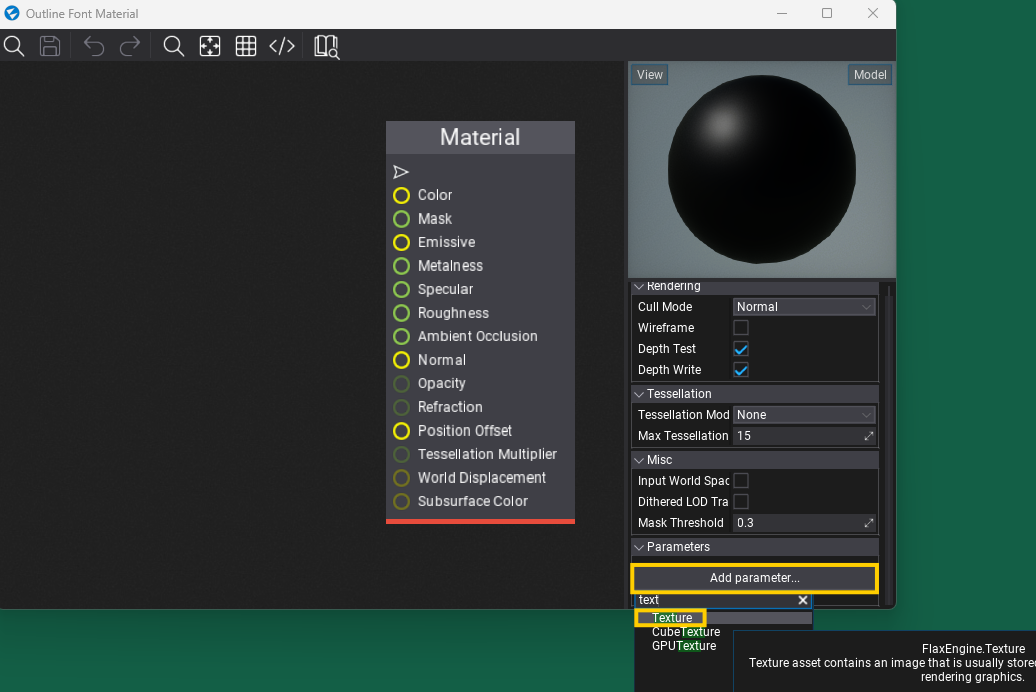
Scroll down the material properties panel and select the new parameter type Texture, then press Add parameter. Next double-click on a label with created parameter name and rename it to Font (Flax uses a parameter named Font to bind the font atlas texture during rendering).
3. Change Domain to GUI
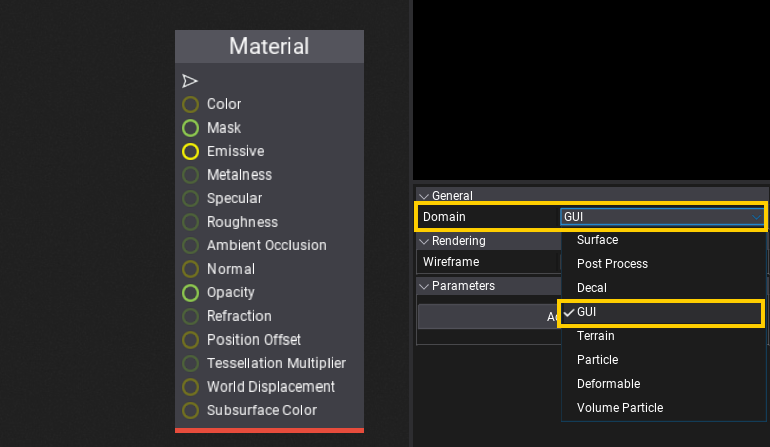
Set Material Domain to GUI if you want to use this material inside UI Controls. If you want to use this material on Models or Text Render then leave it as default Surface (but use other plug than Opacity if material is opaque).
4. Set up the material graph
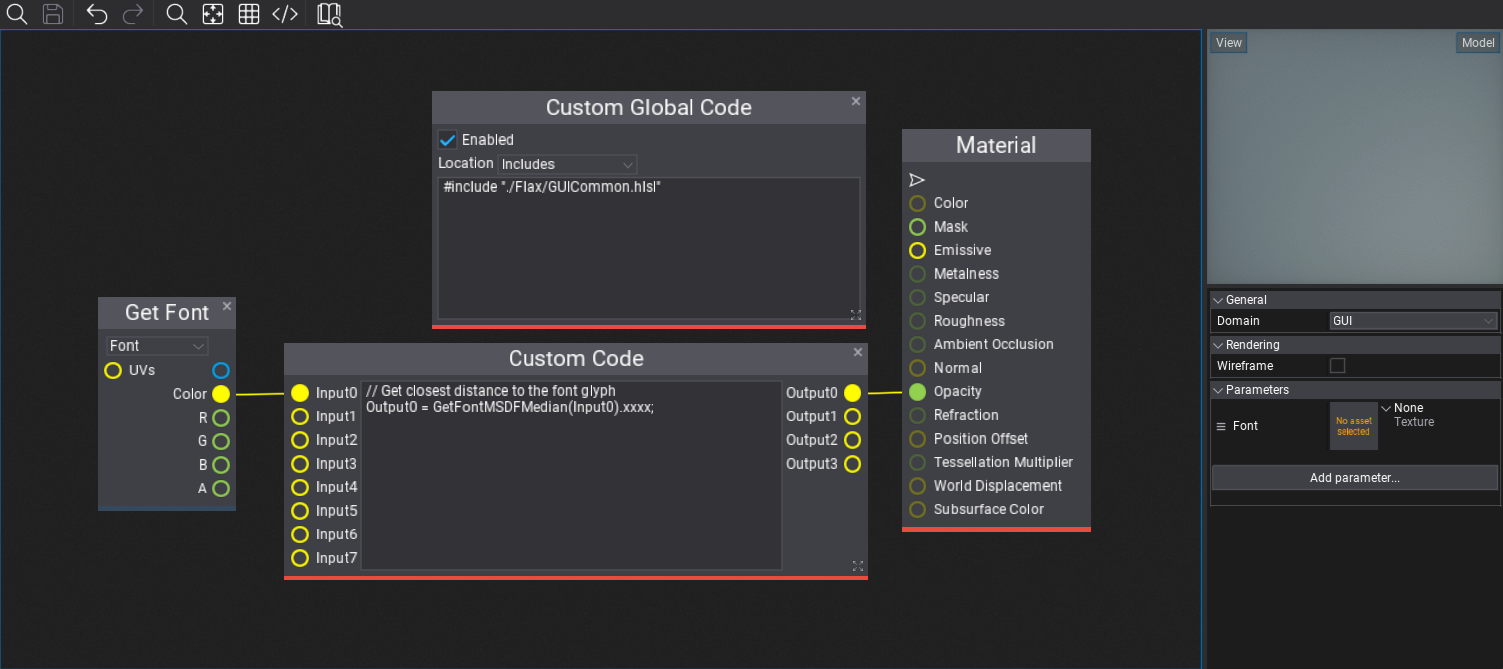
In this step you need to create a material using shader code blocks as shown on a picture above.
Add a new Custom Global Code node and set it;s Location to Includes, then write the following code there:
#include "./Flax/GUICommon.hlsl"
This will ensure that various GUI and font sampling utilities will be included to use inside a shader file.
Then add similar node Custom Code with the following code:
// Get closest distance to the font glyph
Output0 = GetFontMSDFMedian(Input0).xxxx;
Finally, drag and drop Font parameter (from proprties panel on the right) to sample the font texture. Plug the font Color output into the first Input0 of the Custom Code node, then connect Output0 from that node to the output Opacity of the material.
5. Assign the material
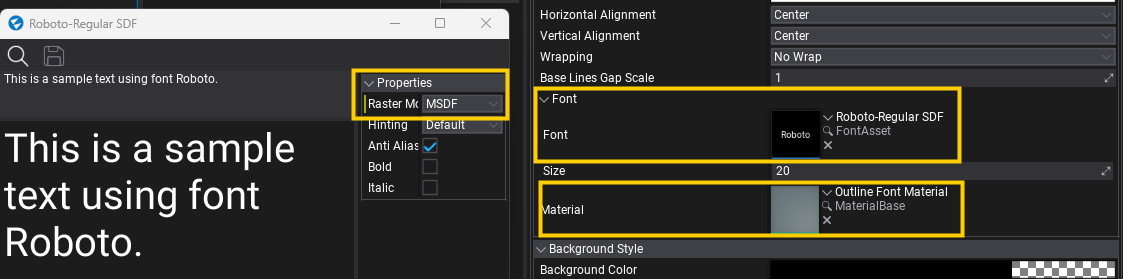
Now, create a new Label control, set it's Font to asset that uses MSDF as Raster Mode and plug the created material into the Material property. Ensure that font size is not too small to ensure SDF data is correct. Values around 20 are usually a good starting point.
Now, you should see a basic SDF font rendering that will look like a shadow-like gradient of the text:

6. Make an outline
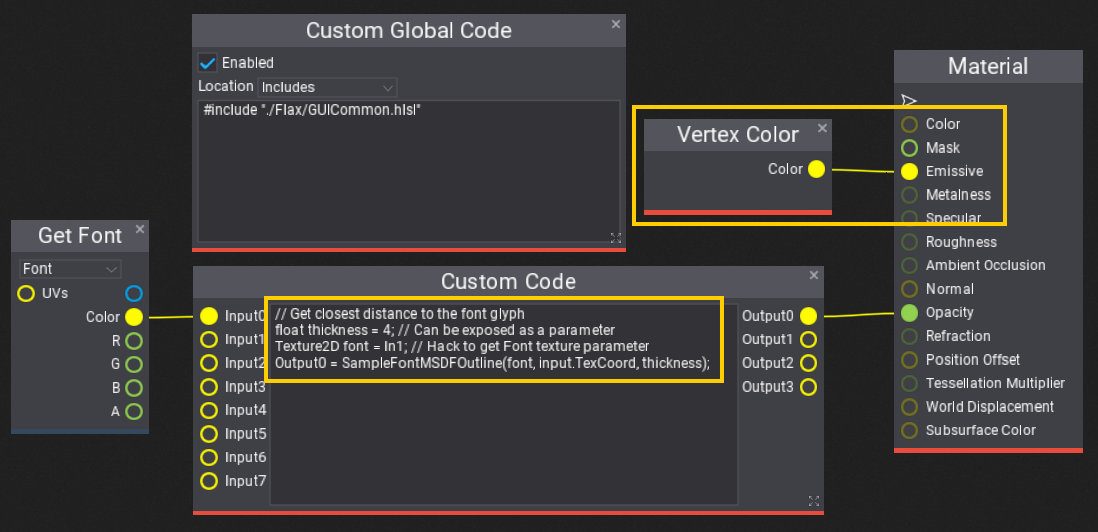
Finally, let's pump up the shader to draw an outline of the text and use color from vertex, which will be passed by rendering system directly from the control rendering.
Edit the Custom Code node:
// Get closest distance to the font glyph
float thickness = 4; // Can be exposed as a parameter
Texture2D font = In1; // Hack to get Font texture parameter
Output0 = SampleFontMSDFOutline(font, input.TexCoord, thickness);
Final result: