HOWTO: Create a curved and distorted UI
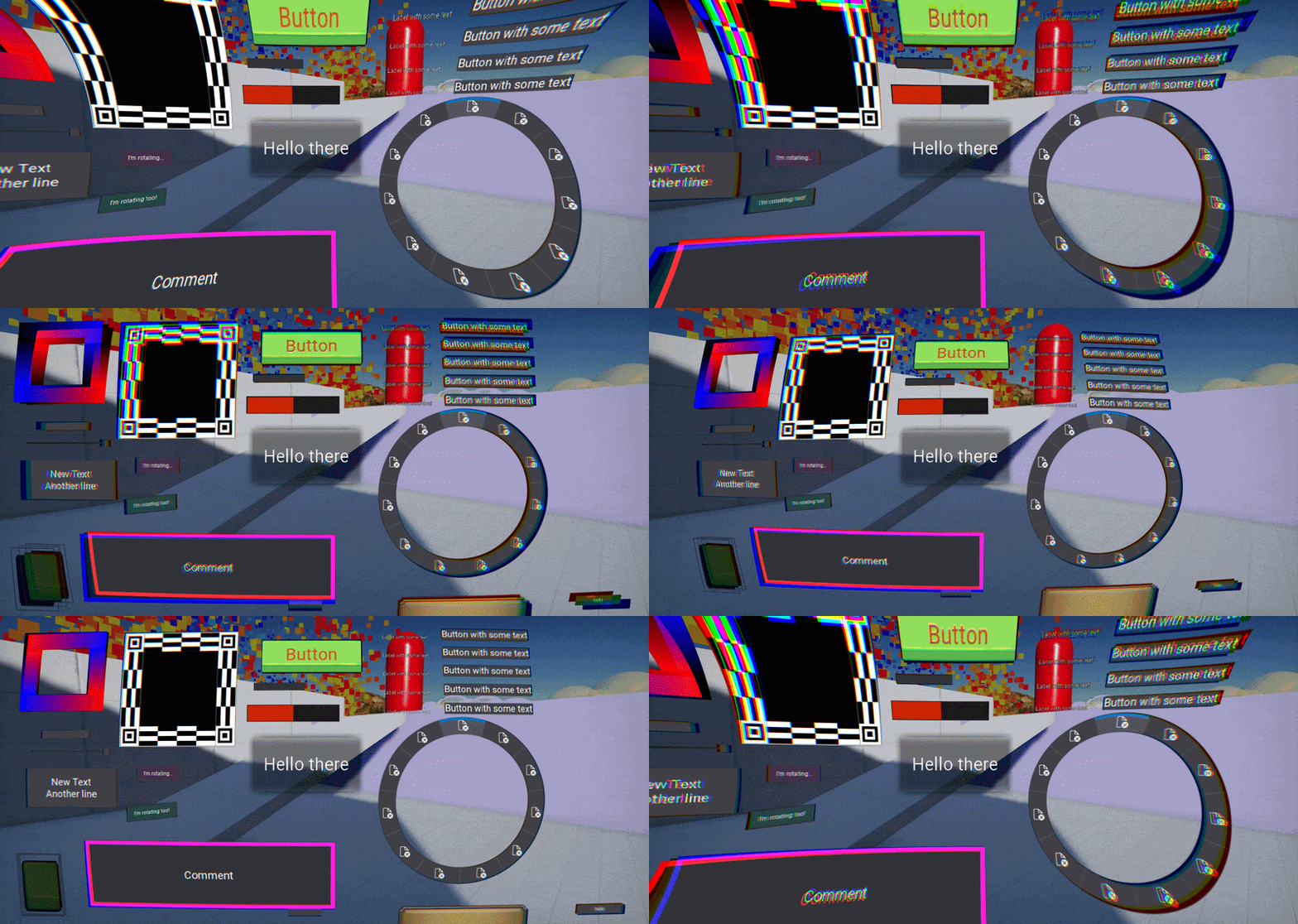
In this tutorial, you will learn how to create a custom post-process material for UI that makes it look curved and distorted with chromatic aberration. Such effect can be used on the player HUD (Heads-Up Display) to complete game stylization or implement specific art direction.
1. Create material
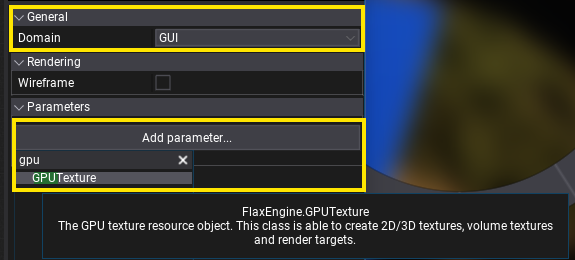
Create a new material and set its Domain to GUI. Then add a new GPUTexture parameter and set it's name to Input. This parameter will be assigned by the engine to texture with rendered underlying UI structure. This material will be able to display it in a custom way.
2. Build a shader
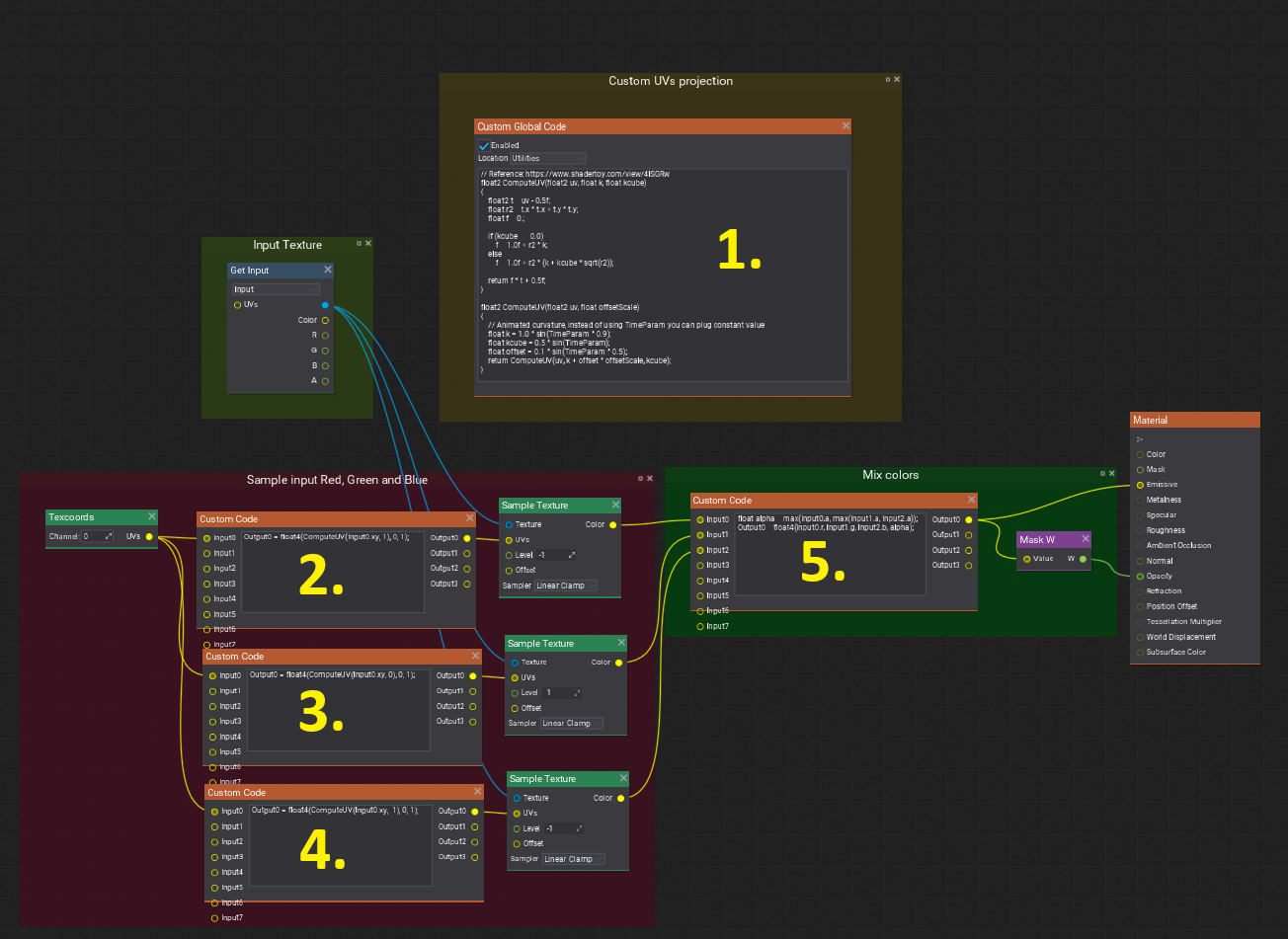
Now, you can sample that Input texture to display its contents by plugging color into Emissive and alpha into Opacity of the material main node.
In this example, you can see an advanced shader that samples a texture 3 times with a custom distortion effect. Code contents of nodes:
1) Custom Global Code set to Utilities:
// Reference: https://www.shadertoy.com/view/4lSGRw
float2 ComputeUV(float2 uv, float k, float kcube)
{
    float2 t = uv - 0.5f;
    float r2 = t.x * t.x + t.y * t.y;
    float f = 0.;

    if (kcube == 0.0)
        f = 1.0f + r2 * k;
    else
        f = 1.0f + r2 * (k + kcube * sqrt(r2));

    return f * t + 0.5f;
}

float2 ComputeUV(float2 uv, float offsetScale)
{
    // Animated curvature, instead of using TimeParam you can plug constant value
    float k = 1.0 * sin(TimeParam * 0.9);
    float kcube = 0.5 * sin(TimeParam);
    float offset = 0.1 * sin(TimeParam * 0.5);
    return ComputeUV(uv, k + offset * offsetScale, kcube);
}
2) Custom Code that takes Texcoords as input and outputs UVs to Sample Texture with Linear Clamp sampler:
Output0 = float4(ComputeUV(Input0.xy, 1), 0, 1);
3) Custom Code that takes Texcoords as input and outputs UVs to Sample Texture with Linear Clamp sampler:
Output0 = float4(ComputeUV(Input0.xy, 0), 0, 1);
4) Custom Code that takes Texcoords as input and outputs UVs to Sample Texture with Linear Clamp sampler:
Output0 = float4(ComputeUV(Input0.xy, -1), 0, 1);
5) Custom Code that takes all 3 texture samples and mixes them into the final color:
float alpha = max(Input0.a, max(Input1.a, Input2.a));
Output0 = float4(Input0.r, Input1.g, Input2.b, alpha);
3. Add RenderToTextureControl
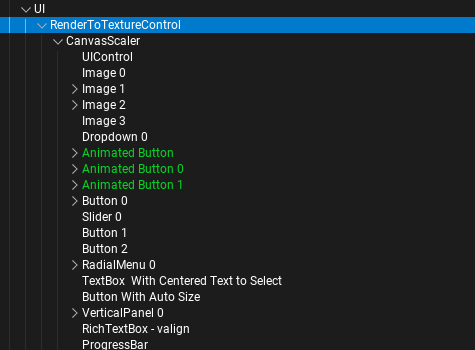
Setup you game UI hierarchy to contain RenderToTextureControl control which shoudl wrap the game UI.
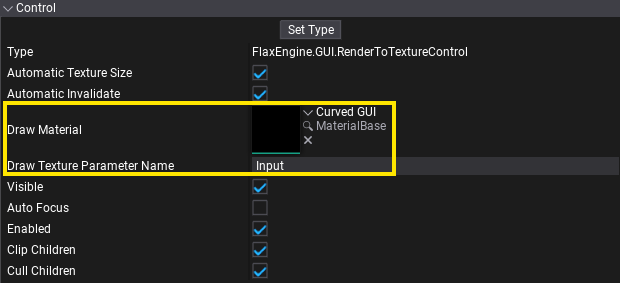
Then, assign a custom material to the Draw Material property. It will be used to blit the rendered UI texture with a custom material.
3. Test it out!
Finally, adjust the exposed properties of the control and see the final results.